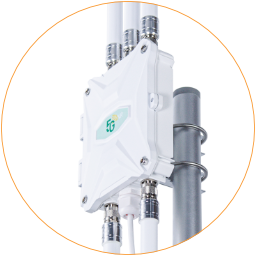
Physical Interfaces
Let’s take a closer look at the physical interfaces on the EZR35-5G router.
Outside Connectors
Section titled “Outside Connectors”The EZR35-5G outdoor router has 5x N-female antenna sockets, 1x cable gland, 1x breather valve, and a lock hole, as shown below. 3x 5G mobile antenna sockets are on the top side, and 2x WiFi antenna sockets are on the bottom.
Port numbers [1~6] are embossed on the enclosure.
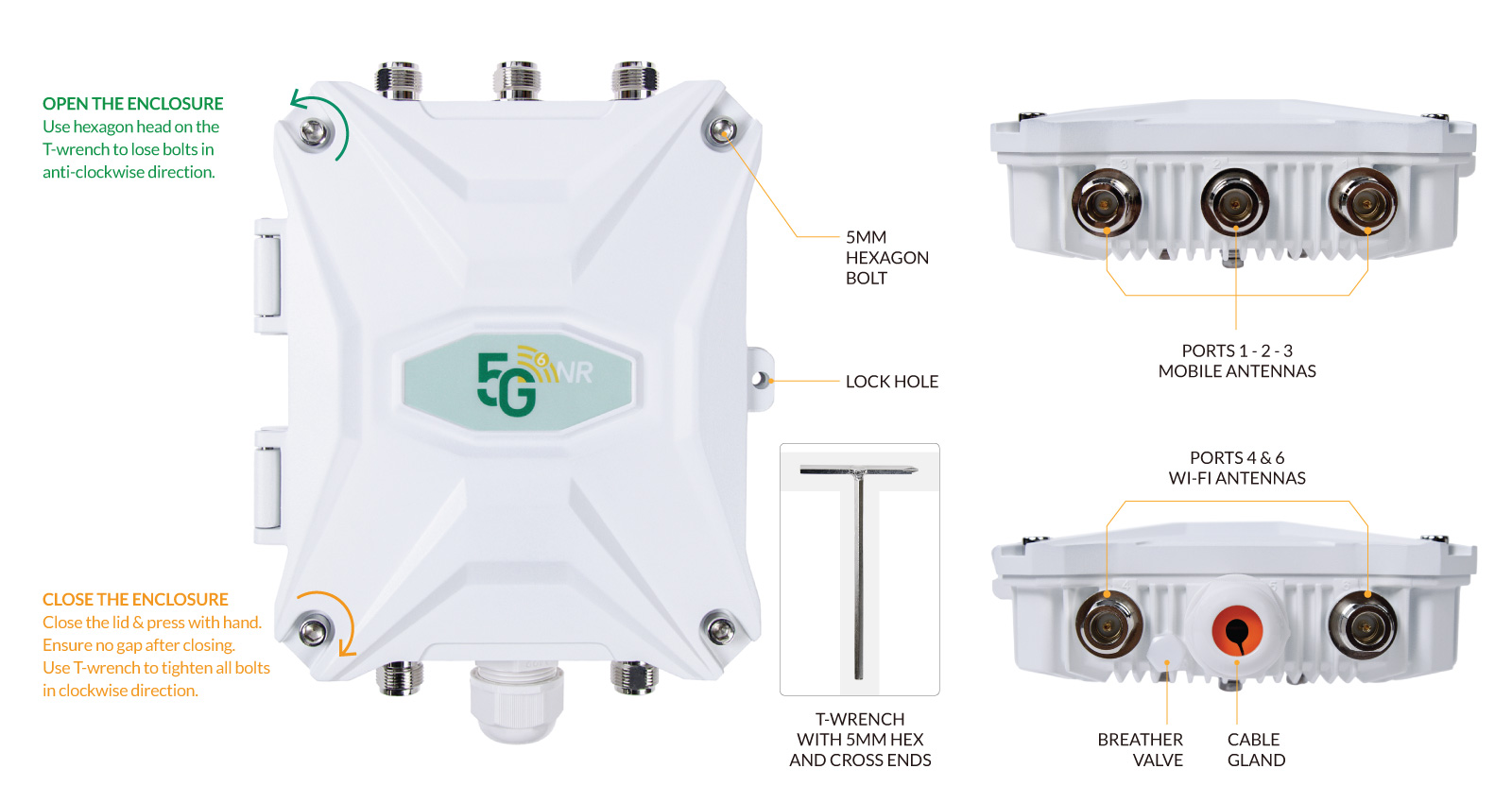
EZR35-5G Router Outside Ports Physical Interfaces
There are two types of ends on the T-shape wrench.
The hexagon end fits the hexagon bolts on the lid. The cross end is fit to cross-headed screws on the backside. Use one of the Hexagon ends on the wrench and turn in an anti-clockwise direction to loosen the bolts on the lid. Then we can open the enclosure.
Inside Ports
Section titled “Inside Ports”The 5G mobile modem, SoC, memory, and RF chipsets are on the back side of the motherboard for better RF isolation and heat distribution.
Please refer to the image below for the standard ports that will operate during the initial installation.
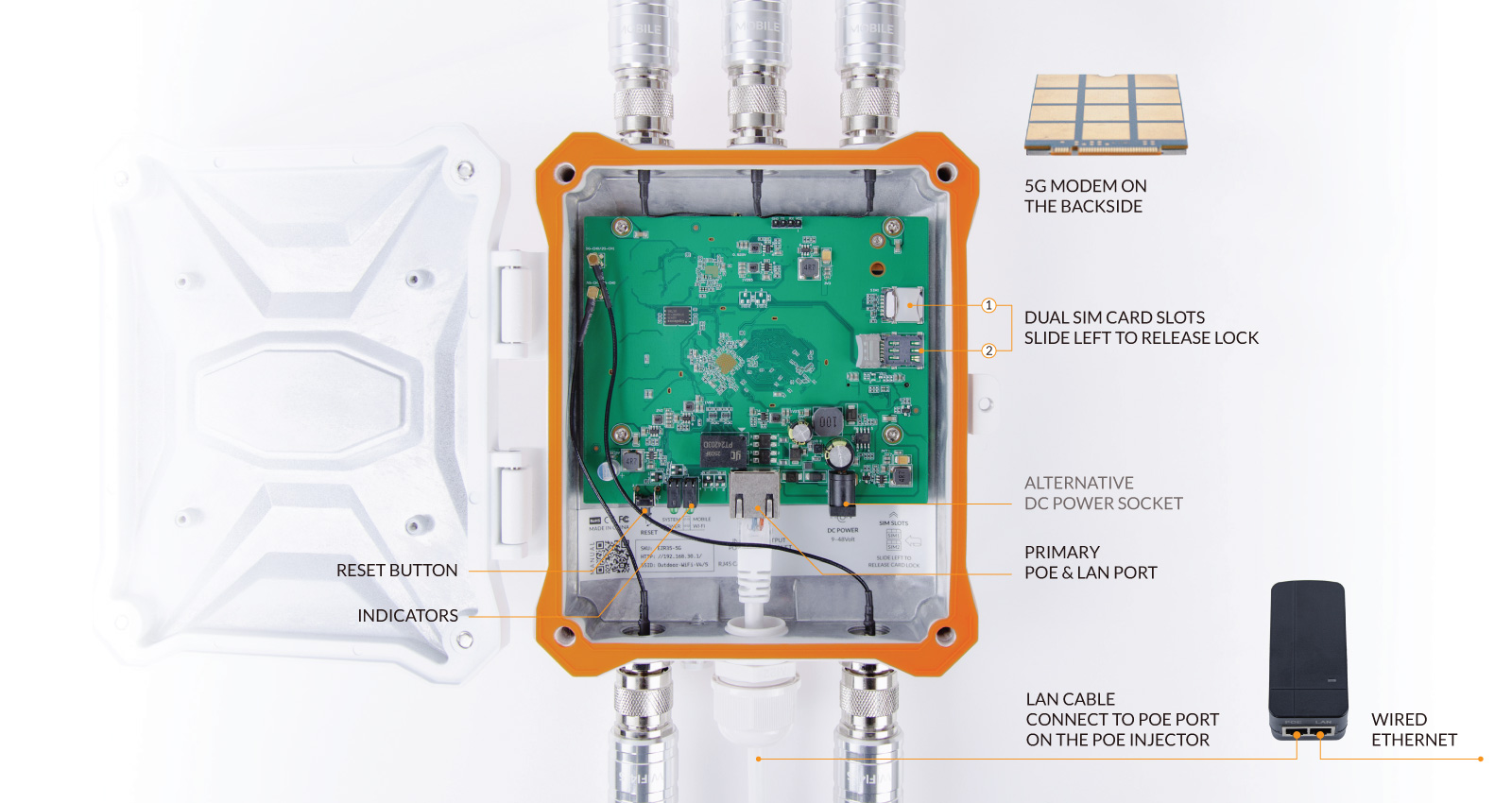
EZR35-5G Inside Ports and Sockets
Indicators
Section titled “Indicators”There are five indicators on the bottom side of the EZR35-5G router’s motherboard, including System, Power, Mobile, Wi-Fi, and the PoE & LAN port. Refer to the chart below for a brief introduction and explanation of their working status.
| Indicator | Status | Description |
|---|---|---|
| Power | Green | Turns on when connected to a qualified PoE and DC power source. |
| System | Green | This light indicates that the router is in operation. If it lit solid green, then the router has booted successfully. |
| Flash | The router system is booting up. The system indicator flashes while resetting or flashing the firmware. | |
| Off | Short of power. Check the PoE or DC power connection. | |
| Mobile | Green | Indicates the mobile internet connection. Turns on when it has an active internet connection on the mobile modem. |
| Flash | Means mobile internet is activated with data flow. | |
| Off | No workable SIM card or Mobile interface is stopped. | |
| Wi-Fi | Green | 2.4G and 5.8G hotspots are enabled. You can find and connect to the Wi-Fi hotspots when this light is green. |
| Flash | If you are connected to the Wi-Fi hotspot, it will flash green to indicate data going to and from the router. If the router is connected to another Wi-Fi hotspot (Wi-Fi relay), it will also flash because it has the data flow. | |
| Off | If it's off, your router no longer sends a Wi-Fi signal. To turn it on, log in to the router admin and turn on the Wi-Fi hotspot. | |
| PoE & LAN | Green | Same as the power indicator, a qualified PoE power source has been successfully connected. |
| Flash | Outputs Ethernet data travels through the LAN port on the PoE injector. | |
| Off | No active PoE power in transcation. |