Wi-Fi Hotspots
A summary and configure options for wireless settings. It allows the management of Wi-Fi SSIDs, encryption, channels, and more.
Wireless Overview
Section titled “Wireless Overview”After accessing the router admin panel, go to “Network > Wireless” to check the Wi-Fi status.
(wifi0) Generic Atheros 802.11bgn is the Wi-Fi V4 (2.4GHz) network
- SSID Outdoor-WiFi-xxxx-V4 | Mode: Master – the primary 2.4G Wi-Fi hotspot
- SSID xxxx | Mode: Client – the Wi-Fi relay connection appears after setting up a Wi-Fi relay.
(wifi1) Generic Atheros 802.11aac is the Wi-Fi V5 (5.8GHz) WiFi network
- SSID Outdoor-WiFi-xxxx-V5 | Mode: Master – the primary 5.8G Wi-Fi hotspot
- SSID xxxx | Mode: Client – the Wi-Fi relay connection on 5.8GHz.
Master mode is the primary hotspot created by the router. Client mode is the Wi-Fi relay connection, which only appears when a Wi-Fi relay link is established.
Turn On/Off Wi-Fi
Section titled “Turn On/Off Wi-Fi”You can turn on/off both client and master SSID by clicking the “Enable/Disable” button.
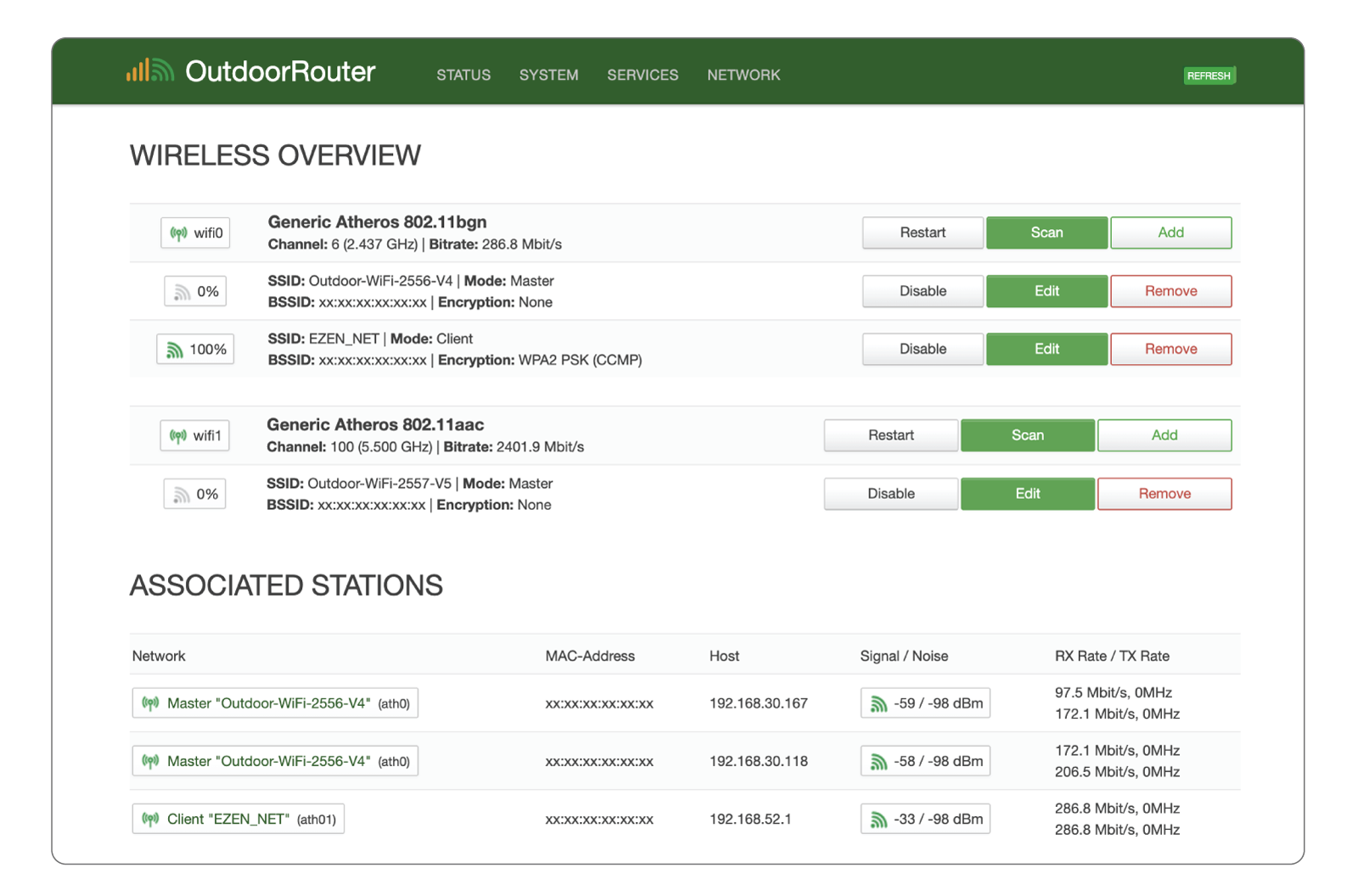
EZR35 Router Mobiel Wi-Fi Hotspots Wireless Overview Page
Associated Stations
Section titled “Associated Stations ”The nether associated stations list wirelessly connected terminal devices and upstream Wi-Fi relay link sources. You can check the link quality, MAC address, hostname, Wi-Fi signals, and speed rates.
Edit Wi-Fi Hotspot
Section titled “Edit Wi-Fi Hotspot”On the above wireless overview page of “System > Wireless.” Click the “Edit” button on the row of related SSID to enter their configuration page.
i. Basic Wi-Fi Settings
Section titled “i. Basic Wi-Fi Settings ”Under the “General Setup “ tab, we can monitor the network status and configure the Wi-Fi operating Mode, Channel, Bandwidth, and Transmit Power. Suggest using optimized default settings.
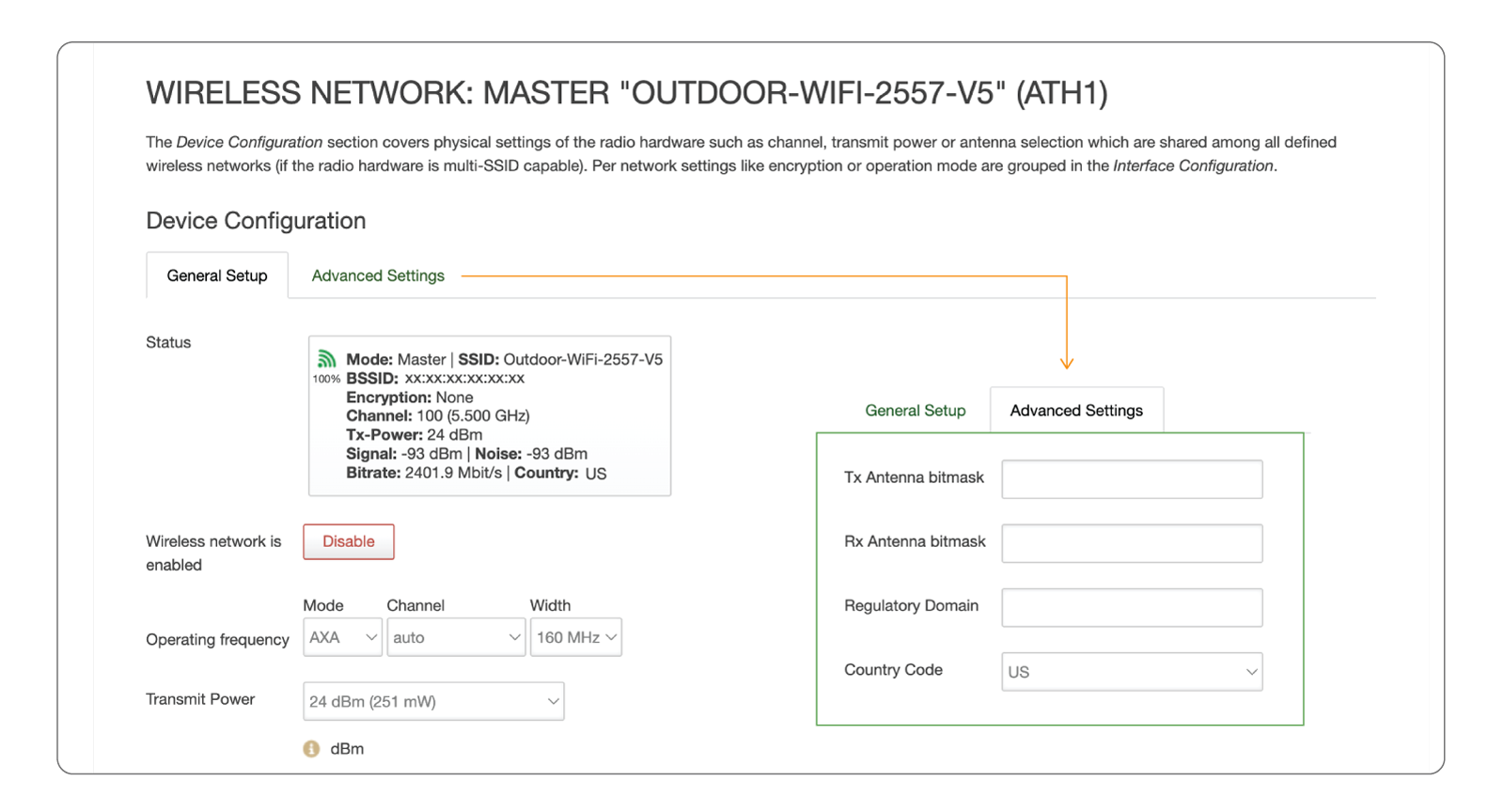
EZR35-5G Mobile Wi-Fi Settings On Mode Channel Width And Power
ii. Wi-Fi Country Code
Section titled “ii. Wi-Fi Country Code ”In Device Configuration, click the Advanced Settings tab, check the Country Code field, and select the corresponding country code.
It is essential to ensure the Wi-Fi hotspot on your router meets the legal regulations in your country. The other configured Wi-Fi networks will use the same device settings.
iii. SSID & Password
Section titled “iii. SSID & Password ”Scroll down and find the “Interface Configuration” section to edit Wi-Fi hotspot SSID and password.
Wi-Fi SSID
Section titled “Wi-Fi SSID”Under the “General Setup” tab, we can change the name of the Wi-Fi hotspot in the “ESSID” field. Suggest use a unique, recognizable name. Avoid using personal information in SSIDs.
Mode & Network
Section titled “Mode & Network”Keep the mode and network settings no change. The mode should use “Access Point” since it is a standalone Wi-Fi hotspot. The network firewall should bind to “lan” to ensure the internet passes through on the hotspot.
Hide ESSID
Section titled “Hide ESSID”You can hide the SSID by enabling the Hide ESSID checkbox. It will stop broadcasting the Wi-Fi hotspot but will not improve security significantly. When enabled, you should manually input the Wi-Fi SSID and password to connect to a new device.
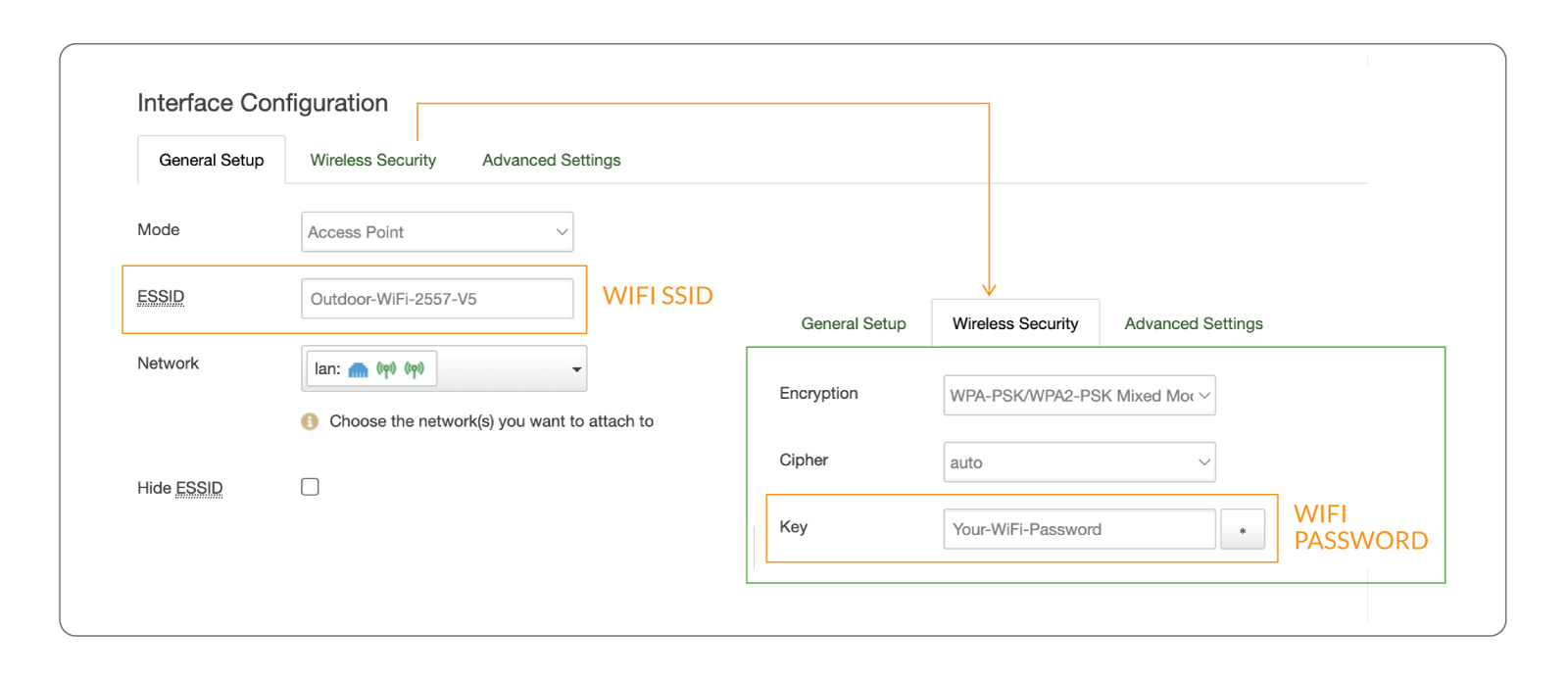
EZR35-5G Router Wi-Fi ESSID and Wireless Security Settings
Wi-Fi Password
Section titled “Wi-Fi Password”In the Wi-Fi settings page, scroll down to the interface configuration. Click the “Wireless Security” tab to modify the Wi-Fi encryption settings.
- Encryption: Select an encryption method. The “WPA2-PSK” and “WPA/WPA2 Mixed Mode” options are recommended for home and small office networks.
- Cipher: The “Auto” option is recommended.
- The Key is the Wi-Fi password. Enter your password without spaces. Special characters are allowed. The minimum length is eight characters. * Do not leave the key field blank.
- Other default settings are qualified for general usage.
EZR35 Router - How to Set Router Password & WiFi Hotspots
Wi-Fi Relay
Section titled “Wi-Fi Relay”You can connect the outdoor router to another Wi-Fi hotspot to get a backup Internet connection or extend the current Wi-Fi network. Navigate to the “Network > Wireless” page, click the “Scan” button on 2.4G or 5.8G network, and “Join” the desired Wi-Fi network.
Click the Wi-Fi relay tutorial to get step-by-step guidance.
Wi-Fi Coverage
Section titled “Wi-Fi Coverage”For better outdoor Wi-Fi coverage, suggest installing the router in an open space with the fewest barriers nearby.
To cover indoor spaces, you can install the router near the windows or doors. You can also use an indoor router and link to the LAN port on the PoE injector to improve indoor network coverage.